Tech Support/Body
Before Consulting the List Below - Common Solutions and Diagnostics
Whilst most problems seen here have very specific solutions, there are a few agnostic solutions that tend to work for most issues. Give these a try before proceeding to the list below.
Verifying Integrity of Game Files
A large portion of crashes and gameplay bugs can be fixed by verifying the integrity of the game files through Steam. This process validates the presence of all game files on-disk, and will prompt Steam to re-acquire any file that fails validation (i.e. is missing). This is especially useful after updates or file changes, where there is a chance that files may be deleted or become corrupt.
To validate your game files:
- Right-click on Holdfast: Nations at War in your Steam library and select 'Properties'.
- On the left side of the pop-up, select 'Local Files'
- At the bottom, click 'Verify Integrity of Game Files'
Steam will perform the validation process. If Steam reports that any files have failed to validate, these files will automatically be re-downloaded again.
Checking Player log file and F2 Console
When diagnosing an issue, it is useful to check the game's error logging. Tech Support may also ask for these logs to help diagnose issues too.
All non-fatal error messages will be written to the in-game F2 console. At any point the game is launched, press F2 to open the console. Any errors are shown in red. Warnings are shown in yellow, but most times these are normal and can be ignored.
For game crashes, it is not always possible to access the F2 console. In these cases, the offending error will be logged in the Player.log file. Player logs files can be found by navigating to C:\Users\<yourusername>\AppData\LocalLow\Anvil Game Studio\Holdfast NaW on Windows. Inside is a file called 'Player', which records logs for the last game session. These logs are overwritten when a new game session is started.
For any queries, please react out to Tech Support in the official Holdfast Discord: discord.gg/holdfastgame.
Known Issue 1 - Black Screen on Launch (Can Hear Music Playing)
If you launch the game and see a black screen but can still hear the music playing, you should try doing the following.
We're currently awaiting a permanent fix for this problem.
=== Known Issue 1 - Black Screen on Launch (Can Hear Music Playing) === # Go to the ‘Display’ tab at the very bottom and underneath your display, locate ‘Scaling Mode’. You should then select ‘Preserve Aspect Ratio’ from the drop-down menu. #:
 # After that is done, you need to go to the ‘Gaming’ tab, locate ‘Holdfast: Nations At War’ and click on it. #:
 # Then make sure that you turn ‘Display Scaling’ to ‘Off’ from the drop-down menu. #:
 ==== NVIDIA Graphics Card (GPU) ==== Follow the below instructions: #Right click on your desktop and select ‘NVIDIA Control Panel’ from the drop-down menu. #:
 # Go to ‘Adjust desktop size and position’ from the menu to the left. #:
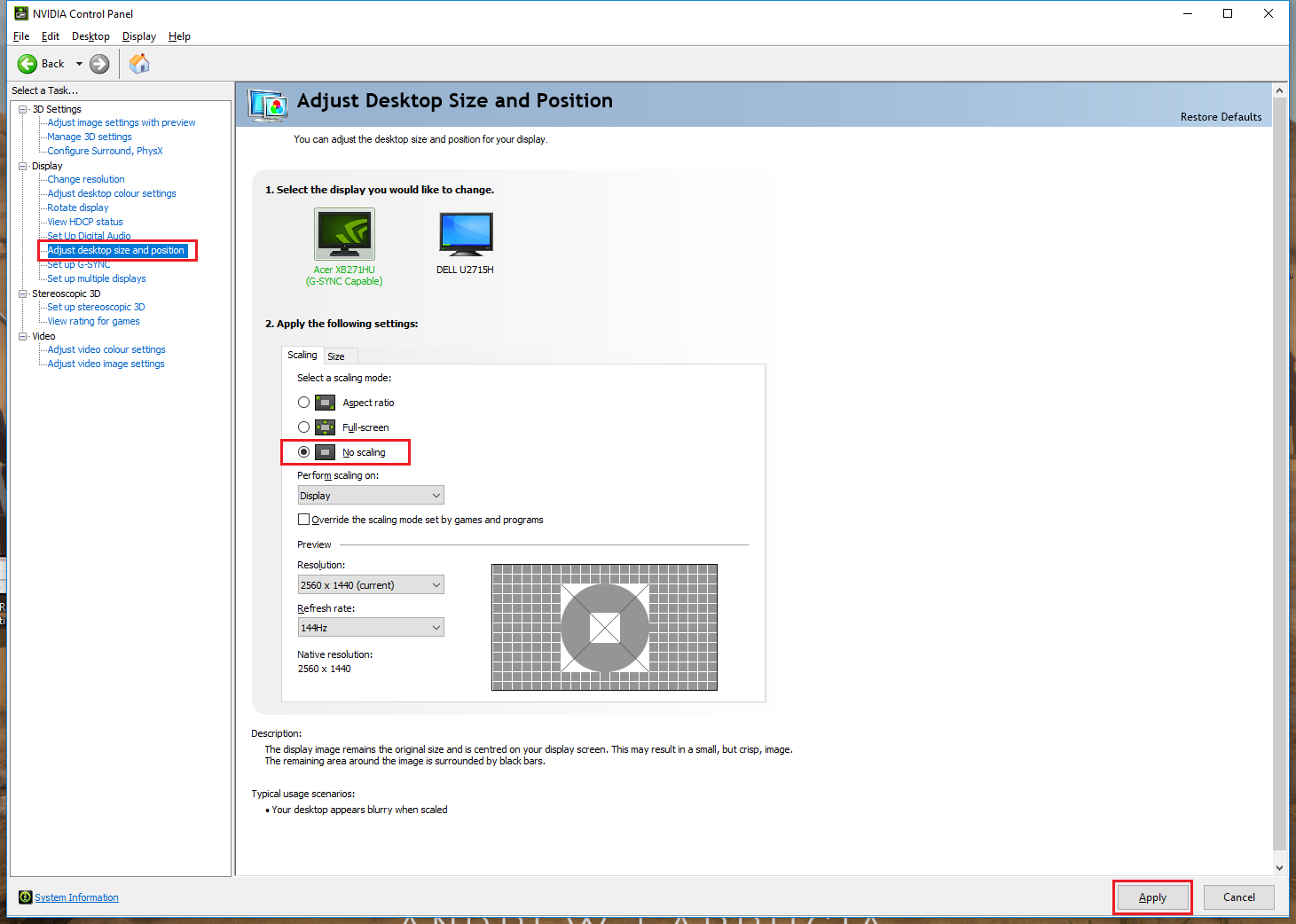
 # Select ‘No Scaling’ under ‘2. Apply the following settings:’ then make sure to click on the ‘Apply’ button. #:
 Thread Reference (Steam Discussion)
 NVIDIA Graphics Card (GPU)
Follow the below instructions:
- Right click on your desktop and select ‘NVIDIA Control Panel’ from the drop-down menu.
- :
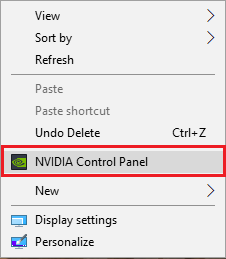
- Go to ‘Adjust desktop size and position’ from the menu to the left.
- :
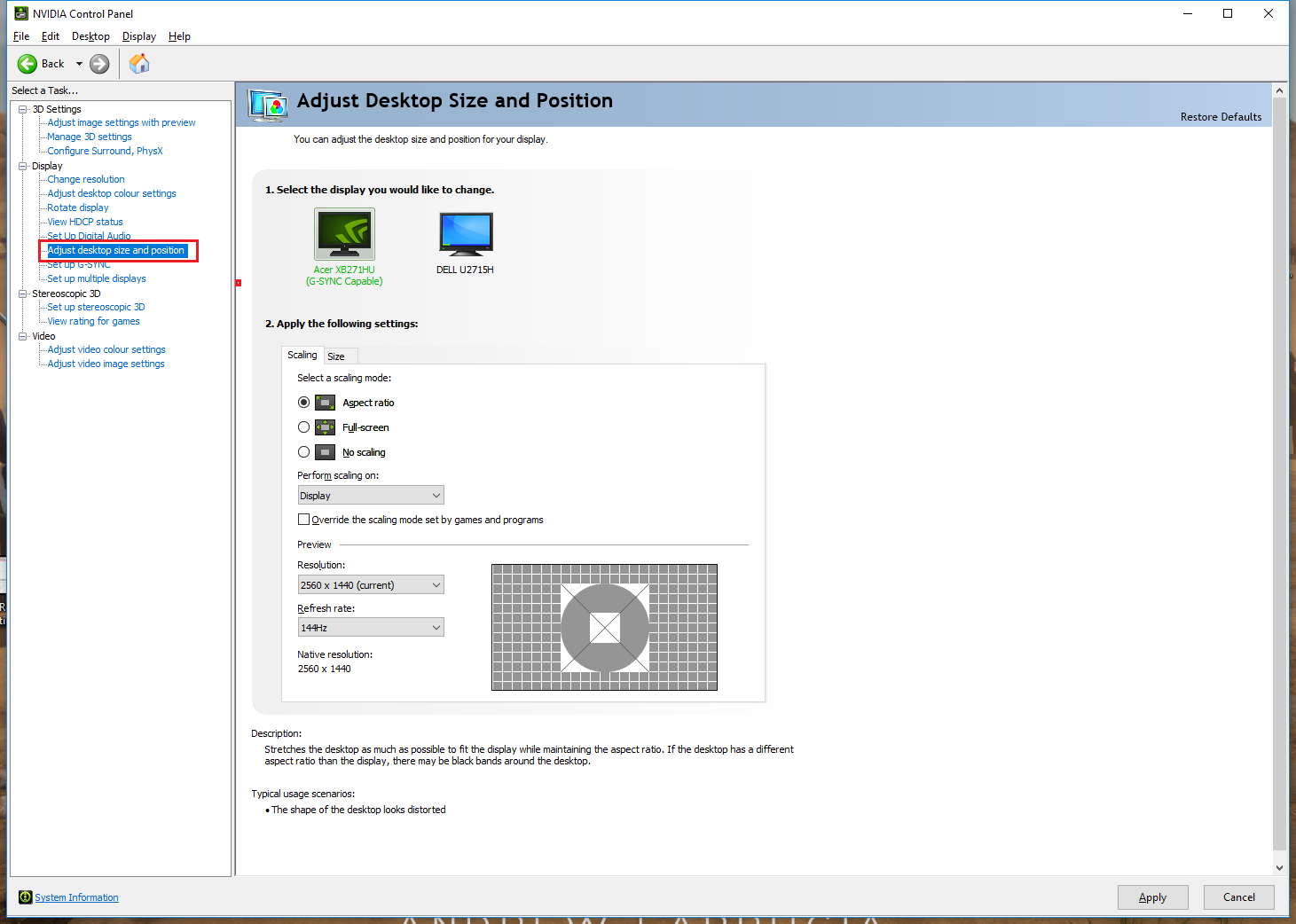
- Select ‘No Scaling’ under ‘2. Apply the following settings:’ then make sure to click on the ‘Apply’ button.
- :
Steam Related Issues
Known Issue 1 - Content File Locked (Corrupted Download)
If the below error is being displayed when you launch the game directly through Steam, it is more than likely that Holdfast: NaW was corrupted whilst downloading.

Follow the below instructions for a fix:
- Delete Holdfast: NaW manually from its folder (Go to were your Steam games are installed).
- Uninstall Holdfast: NaW from Steam.
- Go to your '\AppData\LocalLow\Anvil Game Studio' and delete the 'Anvil Game Studio' folder.
- Restart your PC.
- Install the game again.
Known Issue 2 - Game Crashes After Update
If you have successfully launched the game beforehand but the game is now crashing, this is more than likely being caused by one of the game files getting corrupted after the update.
Follow the below instructions:
- Disable your anti-virus.
- Delete Holdfast: NaW manually from its folder (Go to were your Steam games are installed).
- Uninstall Holdfast: NaW from Steam.
- Go to your '\AppData\LocalLow\Anvil Game Studio' and delete the 'Anvil Game Studio' folder.
- Restart your PC.
- Install the game again and try launching it.
- If it doesn't work, you can try verifying the integrity of your game files by right clicking on 'Holdfast: Nations At War' in your Steam games library > Select Properties > Go to Local Files > Click on 'Verify Integrity of Game Files...' and after the file integrity check is complete, try relaunching the game again.
Known Issue 3 - Black Screen When Launching (Steam Not Initialised)
If you are seeing a black screen when launching the game, Steam didn't properly initialise. It is a required step for Steam to detect that you’re the owner of the game.
Here's a reference of how the black screen looks.

Follow the below instructions:
- Log out from Steam (By clicking on your name to the top right and selecting ‘Change User..’)
- Close the Steam application.
- Open Steam and log in again.
- Try launching the game again.
If the above doesn't work, try the following:
- Uninstall Holdfast: Nations At War.
- Uninstall then reinstall Steam.
- Launch Steam as an Administrator.
- Reinstall Holdfast: Nations At War.
- Verify the integrity of your game files through Steam for 'Holdfast: Nations At War'.
- Try launching the game again.
Known Issue 4 - Loss of class XP and levels
Occasionally, players can sometimes lose some of all of their earned XP and levels for any class. This is usually caused by Steam erroring when retrieving player data, and can often be solved by a simple restart.
Follow the below instructions:
- Close Holdfast: Nations at War
- Restart Steam (fully log out and log back in again, re-opening the Steam client)
- Re-open Holdfast: Nations at War. Class XP and levels should be restored again.
If the above doesn't work, try the following: If the above has not worked, please reach out to tech support for assistance.
Known Issue 5 - Permission Denied error in Regiment Registry
Users may encounter an error when attempted to modify their regiment in the registry (for example, modifying ranks or accepting/denying members). This is usually caused by Steam auth returning an error, thus a simple restart should work.
Follow the below instructions:
- Close Holdfast: Nations at War
- Restart Steam (fully log out and log back in again, re-opening the Steam client)
- Re-open Holdfast: Nations at War.
If the above doesn't work, try the following: Keep restarting your game a few times - sometimes more than one restart is needed.
If the above doesn't work, try the following: Very rarely, repeated restarts of Steam and Holdfast: Nations at War do not resolve this error. However, it can sometimes take minutes, hours, or even days to work, the reason for which is still under investigation. If you are still having issues, reach out to tech support for further assistance. Leave it for a few hours or days and it should eventually fix itself.
Game Tips
Game Tip 1 - Orbit Camera (Look Around) Not Working
If the 'Orbit Camera' used to look around your character without moving around is not working, try changing the default key to another from the key settings. The default key for the orbit camera is tilde '~'.
Follow the below instructions:
- Go to 'Settings' > Then navigate to the 'Keys' tab > Change the key for the 'Orbit Camera' to another one.
Game Tip 2 - Left Clicking When Using A Musket From Firing Mode Is Going Into Melee Mode
Within the game, you right click to aim, left click to fire and press 'R' to reload. If you left click when you're in firing mode with a bayonetted musket, it will go automatically into melee mode. You can disable this through the game options.
Follow the below instructions:
- Go to 'Settings' > Then 'Game' > Look under 'Melee Combat' > And disable 'Auto Bayonet Switch'.
Game Tip 3 - Restrictive Melee Combat When Striking (Turning Rate Too Low)
If melee combat feels restrictive when holding a strike and turning, you should try increasing sensitivity of the 'Melee Combat' sensitivity slider.
Follow the below instructions:
- Go to 'Settings' > Then 'Game' > Look under 'Mouse Sensitivity' > And increase the 'Melee Combat' sensitivity slider.
Game Tip 4 - Shadowplay Is Not Working
If Nvidia Shadowplay isn't working, you can try pre-launching Holdfast: Nations At War with the below parameter.
Follow the below instructions:
- Right click on 'Holdfast: Nations At War' in your Steam library > Select 'Properties' from the drop-down menu > Click on 'Set Launch Options' > Insert the following parameter: -window-mode exclusive
- Launch Holdfast: NaW and try again.
Game Tip 5 - Game Stuttering (V-Sync)
If your game is stuttering even with high framerates. We recommend that you try turning on V-Sync from within the game.
Follow the below instructions:
- Go to 'Settings' > Then 'Video' > And enable 'VSYNC'.
Server Side Issues
Known Issue 1 - Your Server Is Experiencing Latency Issues
Take note of the following points if the server you are hosting is experiencing latency issues.
The documentation for hosting a server can be found down below.
Host Your Own Game Server! - Documentation
Take note of the following:
- Make sure that your CPU has a core speed of at least 3.6 GHz and that you’re not exceeding your bandwidth. You should also run your game server on a single physical and logical core.
- Make sure that your server box's 'Power Options' are set to 'High Performance' on Windows. By default, this is set to 'Balanced'. Please change this!
- Make sure that you have the latest Windows updates installed on your machine. This is very important.
- Make sure that you follow the folder structure as defined in the documentation. Copy over the ‘holdfast_naw_public_servers’ folder over to your root drive then include the contents of the game from Steam in the ‘holdfast_naw_public_server’ folder.
- Make sure that you port forward the game ports from your firewall and router, (outbound and inbound), on UDP.
- Don’t rename the ‘Holdfast NaW.exe’ executable.
- Don’t switch between Naval and Army based game modes.
Platform-Specific Known Issues & Solutions
The following sections expand the existing troubleshooting documentation with solutions specific to PC, Xbox, and PlayStation 5.
I. PC & Console
This section covers common issues Holdfast players face on both PC and console. Always check for game and system updates first.
Common Pre-Checks
PC (Steam): Verify Integrity of Game Files
- Right-click on Holdfast: Nations at War in your Steam library → **Properties** → **Local Files** → **Verify Integrity of Game Files**.
Xbox: Clear Console Cache
- With the console on, press and hold the Xbox button on the front ~10 seconds until it shuts down.
- Unplug power for 30 seconds, plug back in, turn on. (Green boot-up animation confirms cache cleared.)
PS5: Clear Cache & Rebuild Database
- Power off completely (not Rest Mode).
- Hold the power button; release after second beep to enter Safe Mode.
- Connect controller via USB → press **PS** → choose **Option 5: Clear Cache and Rebuild Database** → **Clear System Software Cache**.
Performance Issues (Low FPS, Stuttering, Lag)
- FPS drops in large battles; stutter/freezes with many players; low FPS even on low settings.
Consoles
- Switch to **Performance Mode**.
- Use a **wired** connection.
- Lower graphics settings.
PC
- Update GPU drivers.
- Disable **V-Sync** (test both on/off).
- Lower graphics settings.
- Close background apps/overlays.
- Use a **wired** connection.
Connectivity Issues (Empty Server Browser, Disconnects, High Ping)
- Restart router/modem.
- Use wired connection.
- Close and relaunch the game.
- On PC: log out/in of Steam, disable VPN, check firewall.
Game Crashes or Freezes
- Restart game/system.
- Clear cache (console).
- Verify file integrity (PC).
- Reinstall the game (last resort).
- Disable overlays (PC).
VOIP Not Working
- Check in-game audio device/settings.
- Relaunch the game.
- Check headset mute/console mute/admin mute.
- Appeal in Discord if server/admin muted.
In-Game Bugs & Glitches (Quick Workarounds)
- Reload glitch: Open & close text chat.
- Stuck state: Respawn.
- Visual artifacts: Update game/drivers.
II. Xbox Series X|S
- User Privileges issue → Fix via Game Pass subscription/account management.
- Performance → Set to **Performance Mode**.
- Crashes/Freezes → Clear cache (see steps above).
- Text Chat unavailable → Fix coming soon.
- Connectivity → Restart console/game; check network status.
- Controller sensitivity → Adjust in settings.
- Loading screen stuck → Full restart of console.
III. PlayStation 5
- Performance → Performance Mode.
- Crashes/Freezes → Known bug; devs investigating. Restart and ensure system/game up to date.
- Connectivity → Restart console/game.
- Controller issues → Adjust sensitivity/dead zones.
- Loading screen stuck → Restart console/game.
- AGS API connection issue → Temporary server-side issue; restart console.
IV. PC (Steam)
- Performance → Lower graphics, close background apps, set process priority (test cautiously).
- Crashes/Freezes → Update GPU drivers; run Steam/Holdfast as admin.
- Connectivity → Disable VPN/antivirus (temporarily), check server browser filters, restart Steam.
- Audio stuttering → Adjust Windows sound settings; disable enhancements; update audio drivers.
- Linux rendering issues → Switch to a different Proton version; ensure appropriate GPU drivers (e.g., Cosmic/mesa).
- Low-spec hardware → Consider NVIDIA GeForce NOW.